>/ ACENTAUR
Capture
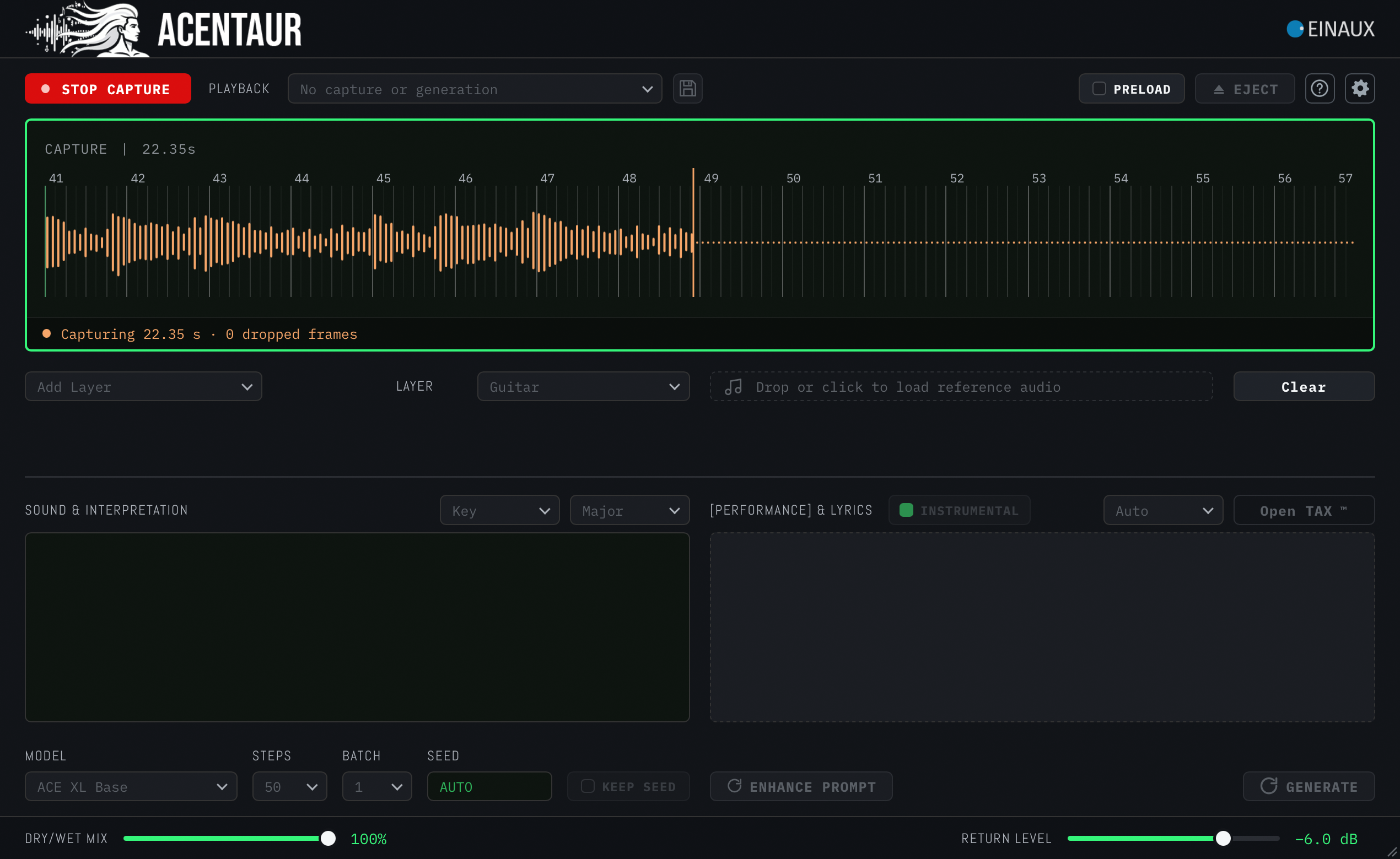
Start with the music, not an empty page: Capture a section directly from a track or bus of your session. ACENTAUR keeps the musical context, tempo, meter and timeline position connected to the task ahead. Your generated audio will always play back from the right spot.
Drag and drop any audio file directly onto the wave display either from your arrangement window (Logic only) or from your hard drive. A previous generation can also be used for further processing.
Create
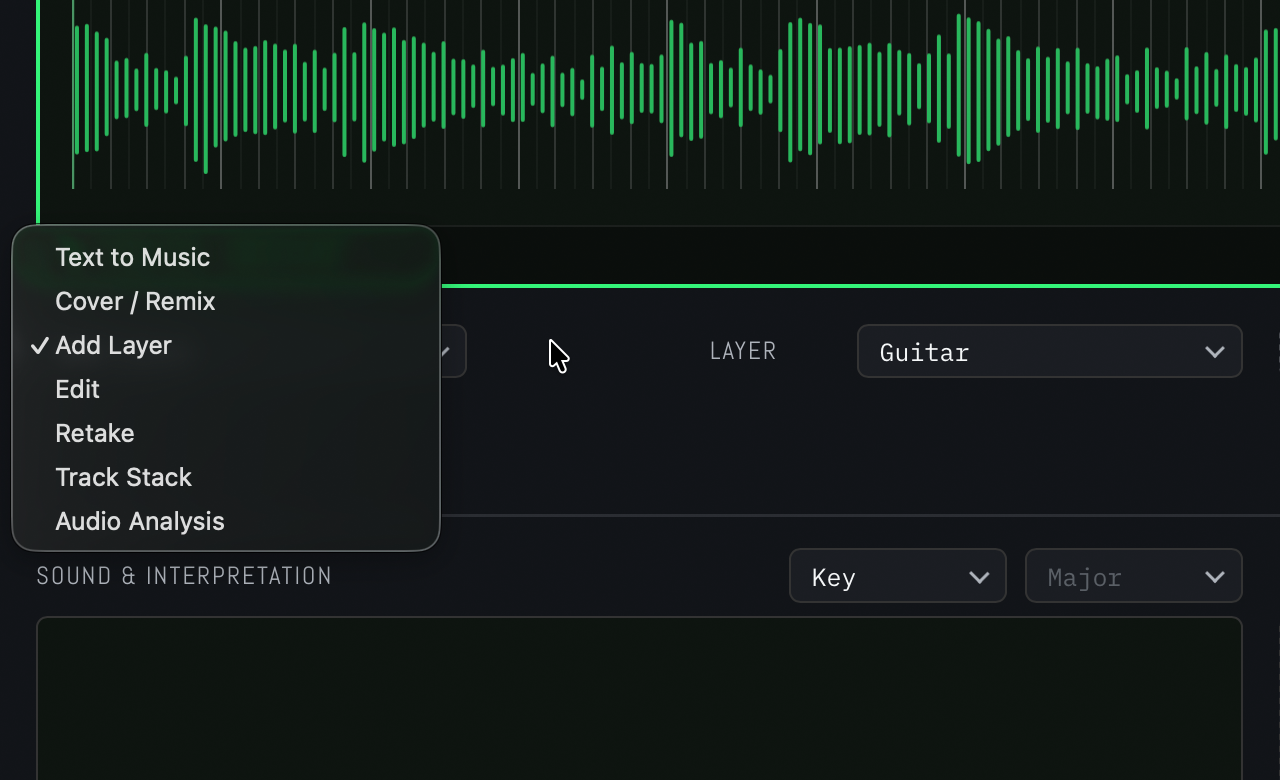
Ask for the track the arrangement needs: Describe an instrument, texture, performance or direction. Generate something new with Text to Music, transform an existing idea or add a layer that responds to the music around it.
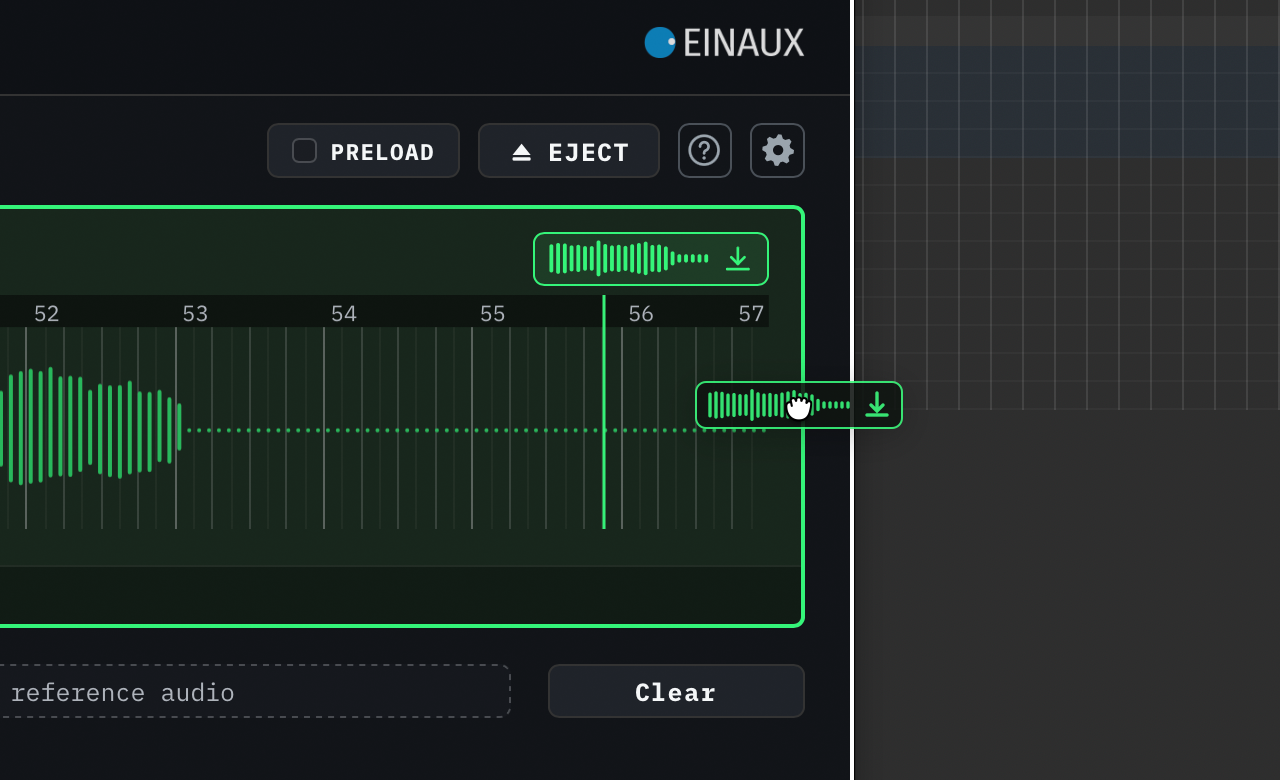
Hear it where it belongs: Audition every candidate against the current mix or listen to it on its own. Compare alternatives before anything becomes part of the production. Drag generated files directly onto the arrangement or track window and tweak, edit or transform them like any other audio files in your mix.
Create your samples from scratch with the Session Player or the Composer with Arranger in the Text to Music Menu.
Shape, transform or edit your Audio with Cover / Remix, Repaint, Retouch or Retake.
Build your production in context by adding new parts with Add Layer or Track Stack.
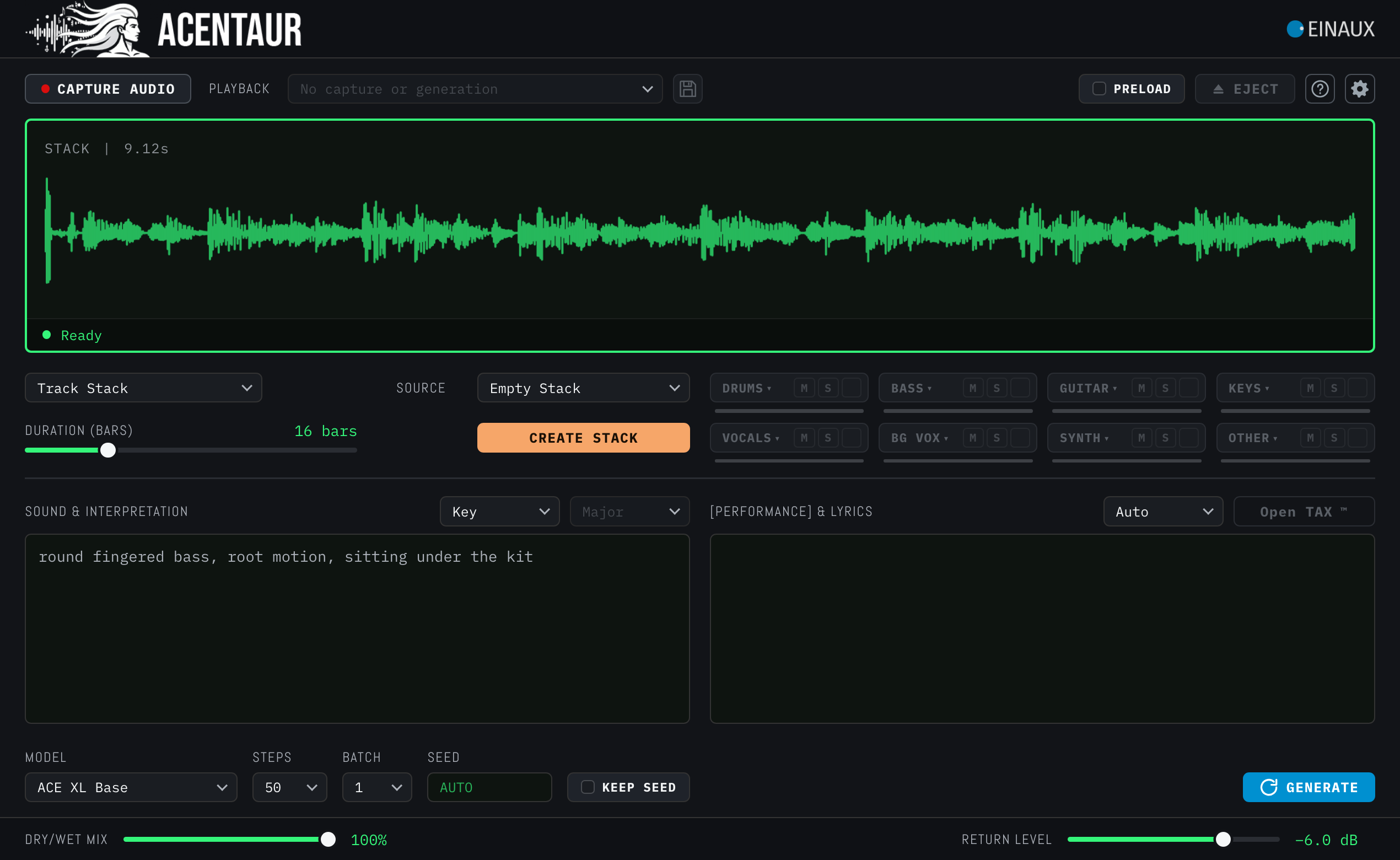
Track Stack
One decision becomes the context for the next: Accept what works and let it become part of the Track Stack. Every accepted track changes the musical context for the next generation, so the arrangement develops step by step. Craft your Music with your expertise, instead of prompting one finished answer.
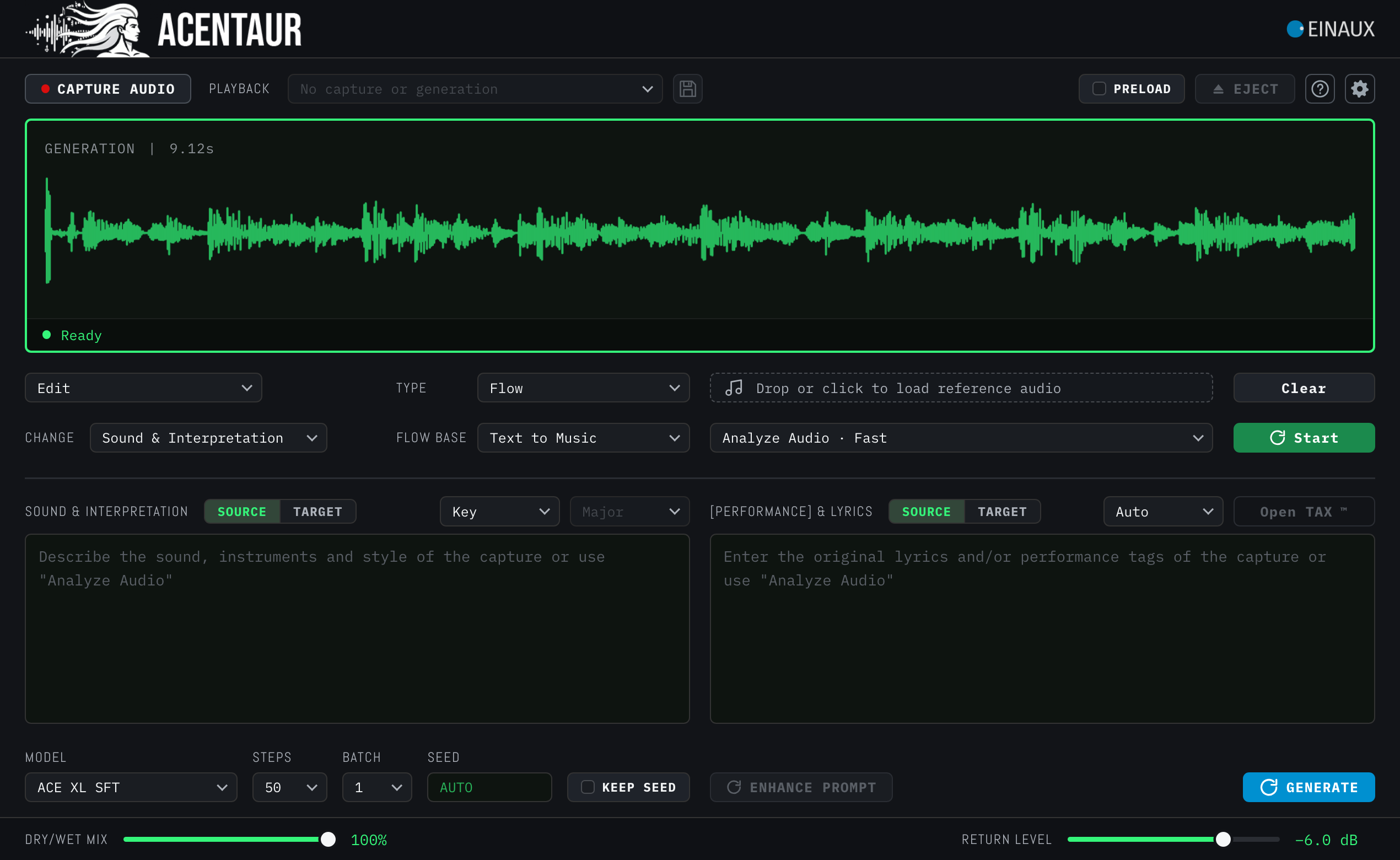
Edit
Change and Transform: Create or remix any audio file or newly generated track. Select the part you want to change: try different lyrics or different styles (available in Repaint and Retouch). You can use Reference Files to further sculpt the generations to your liking: just drag any audio or MIDI region from the arrangement to guide ACENTAUR in the right direction (*see limitations).
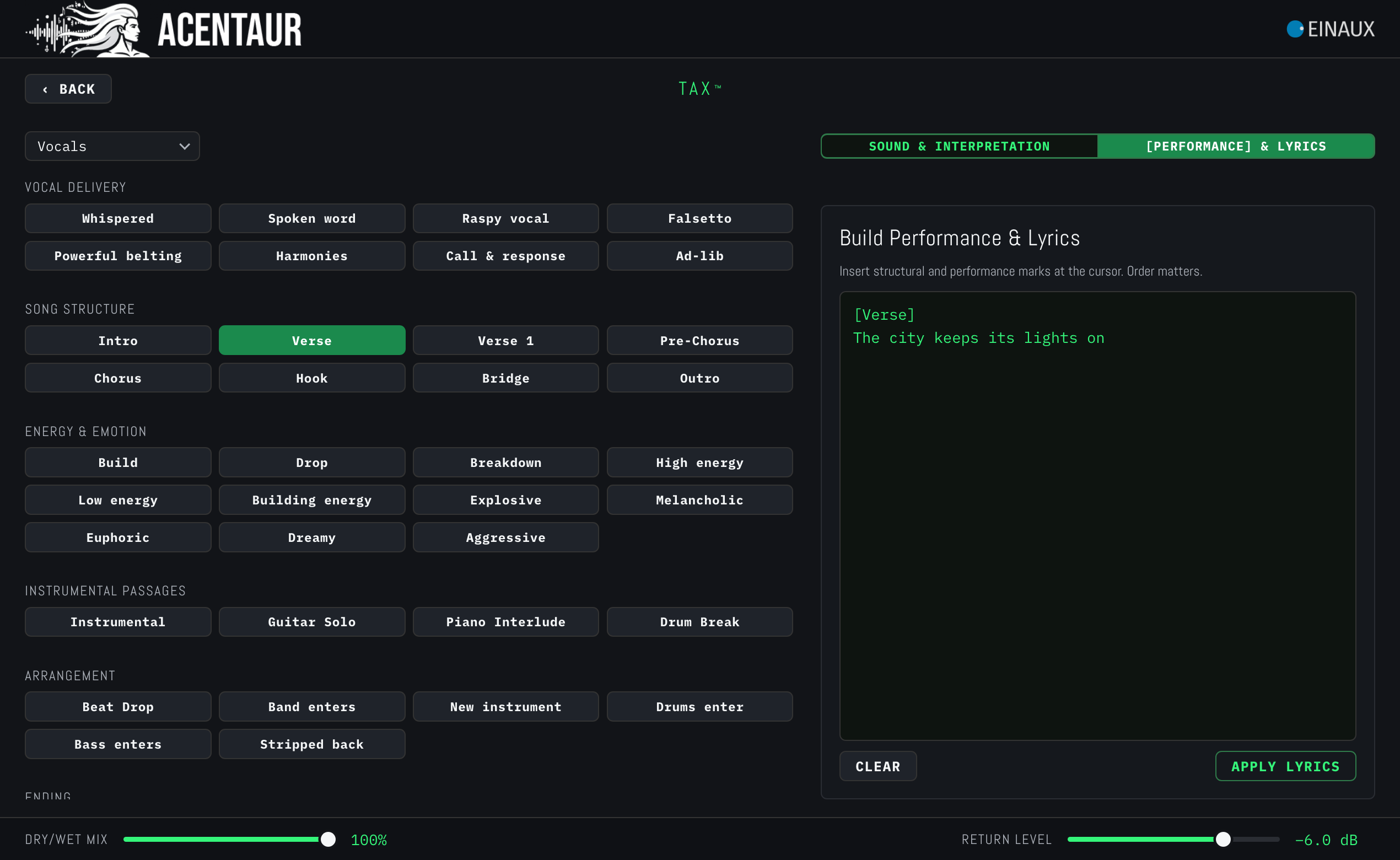
ACENTAUR TAX™
Select your Tags: ACENTAUR lets you control Timbre, Articulation & eXpression without writing prompts. TAX™ is an instrument-specific, constraint-aware Tag Matrix that turns musical choices into model-ready prompts and combines them with the audio context of your DAW. Think of it like register levers of an old synthorgan where you cannot select harpsichord and drums at the same time.
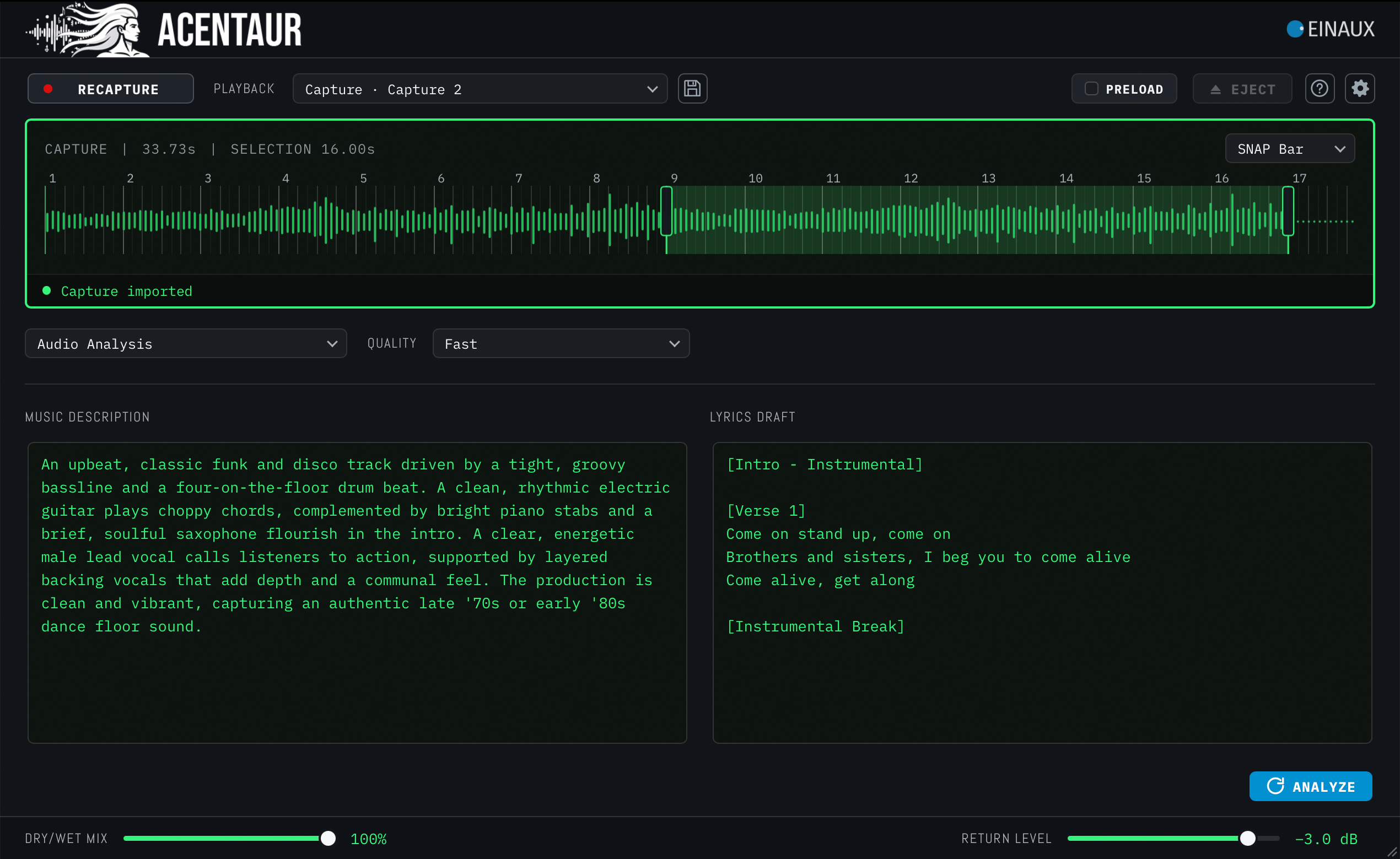
Understand
Turn audio into musical language: Music Analysis can describe a recording or recover its sung and spoken lyrics. Use the result as an editable starting point for a prompt, a project note or the next production decision.
>/ Find out more about Music Analysis
Return, remember, iterate.
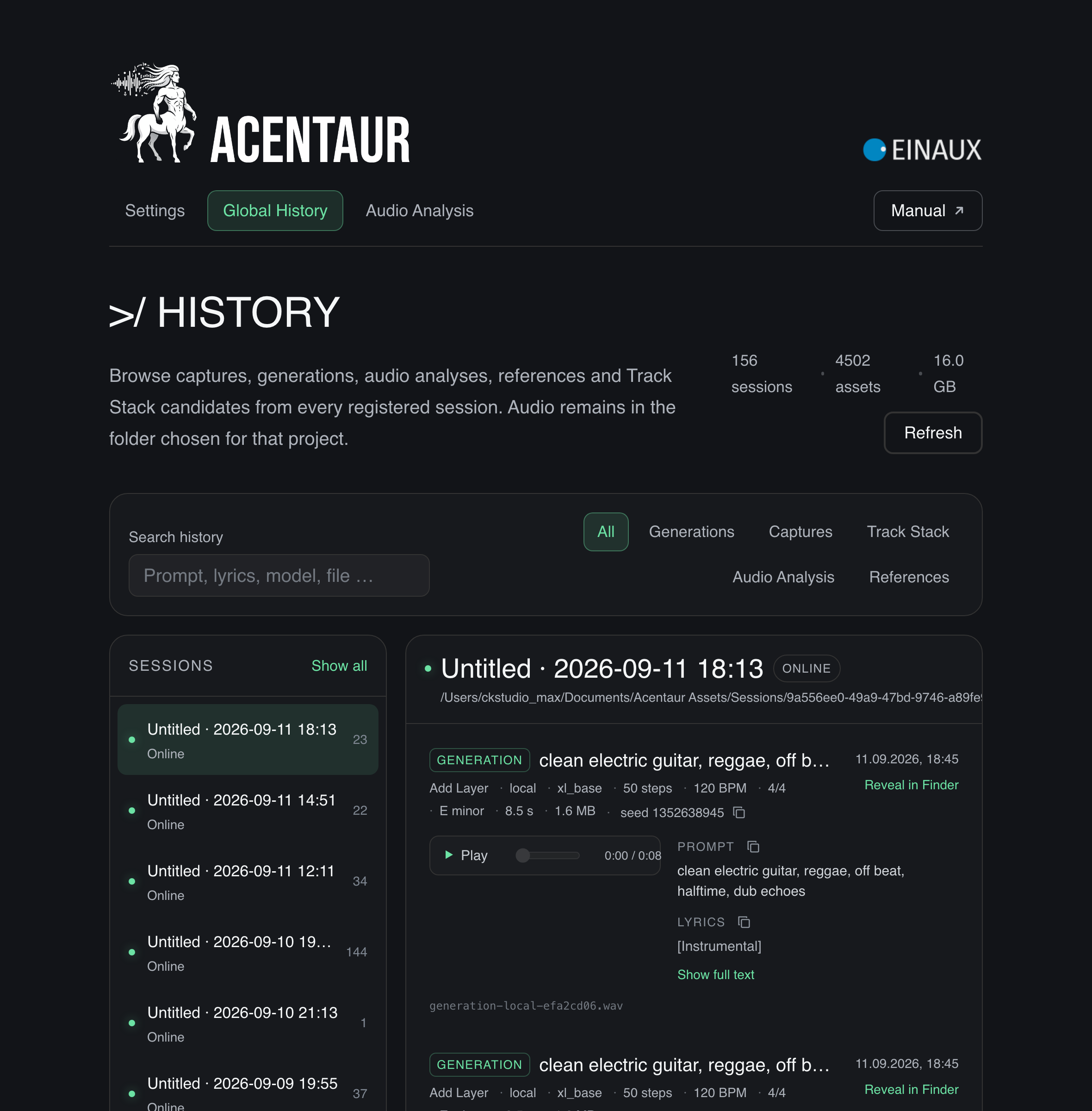
Every idea leaves a trail: Global History brings together captures, references, generations and Track Stack candidates from every registered session. Search by prompt, lyrics, model or file, audition previous results, copy their text or reveal the original audio in Finder. Your audio remains in the folder chosen for the project. History helps you find it without turning the creative process into file management.
>/ Find out more about Global History